Zenless Zone Zero Download Failed? Here’s How I Fixed the Issue in 2026
Zenless Zone Zero download failed error persists in 2026; fix launcher and installation issues with these effective troubleshooting tips.
Zenless Zone Zero continues to dominate the anime-style action RPG scene in 2026, with its vibrant urban fantasy world and fast-paced combat still attracting millions of players globally. But even with all the updates and optimizations HoYoverse has rolled out over the years, the dreaded “download failed” error hasn’t been completely exorcised from the launcher. As someone who’s been grinding since day one and recently reinstalled the game on a new rig, I’ve stared at that frustrating message more times than I care to admit. The good news? Most of the time, the problem isn’t a server outage or a broken patch—it’s something on your end that you can fix in a few minutes. I’ll walk you through every trick that got me back into New Eridu, from the super obvious to the slightly more advanced.
🖥️ 1. The Old Reliable: Restart the Launcher (and Your Device)
Before you dive into hard drive spring cleaning or network configs, just kill the launcher. Hit that X button or force-close it from the system tray—whichever gets it to fully shut down. Then relaunch and hit download again. In my experience, a stuck background process sometimes chokes the connection, and a fresh start clears it right up. If that doesn’t do the trick, reboot your PC, phone, or console entirely. On my PS5, a full system restart magically fixed the download when a simple launcher reload didn’t. It’s simple, but it works more often than you’d think.
🗑️ 2. Wipe Out Corrupted Files
If the download keeps failing partway through, there’s a good chance some corrupted temp files are sabotaging the process. Navigate to the Zenless Zone Zero installation folder (the one you selected during the initial setup) and delete its contents. Don’t worry—this won’t mess up your account; the game data is tied to your HoYoverse ID. Then try the download again from scratch. I’ve had to do this twice after a power outage scrambled the files mid-patch. It feels drastic, but a clean slate is often the quickest path to a successful install.
💾 3. The Space You Actually Need (It’s More Than You Think)
Storage requirements have crept up with the 2026 expansions, so double-check you’re not just reading the minimum listed on the store page. On PC, Zenless Zone Zero now demands around 60 GB of base files, but the unzipping process during installation temporarily balloons that to 120 GB or more. Trust me, I learned this the hard way when my SSD’s red bar stopped the download dead. Free up at least 130 GB to be safe. On mobile, the situation is tighter: iOS requires roughly 30 GB and Android 25 GB of free space. PS5 players should reserve about 65 GB—the console handles decompression differently, but leftover space still matters.
Here’s a quick reference so you don’t have to guess:
| Platform | Minimum Free Space Required (2026) |
|---|---|
| PC | 130 GB (install + temporary) |
| iOS | 30 GB |
| Android | 25 GB |
| PS5 | 65 GB |
🌐 4. Internet Gremlins: Connection Checks
A spotty network can make the launcher give up mid-download without any meaningful error code. Run a speed test to see if your bandwidth is solid—anything above 10 Mbps should be stable enough. If your speed is fine but the download keeps dropping, give your router the classic power-cycle treatment. I also recommend switching from Wi-Fi to a wired connection on PC and console while downloading massive game files; it eliminates interference and drastically reduces the chance of corrupted packets. On mobile, toggling Airplane Mode or switching between mobile data and Wi-Fi can sometimes jumpstart a stuck download.
🔥 5. Firewall & Antivirus: Stop Blocking Your Game
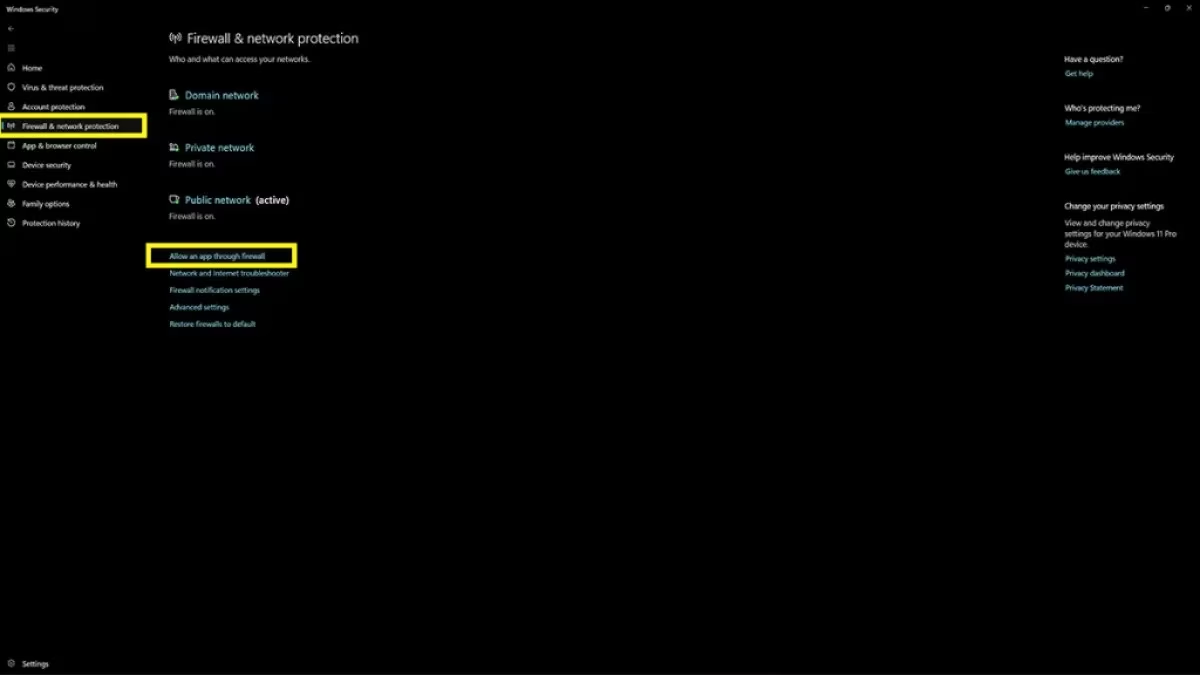
This is where my troubleshooting got a bit more technical and finally cracked the problem for good. Windows Defender (or your third-party antivirus) might be mistaking the launcher’s download traffic for suspicious activity. Firewall settings are the usual suspect. Here’s how to add Zenless Zone Zero to the allowed list on Windows 11 (the steps are nearly identical on Windows 10):
-
Type Windows Security in the search bar and open it.
-
Click Firewall & network protection on the left.
-
Select Allow an app through firewall.
-
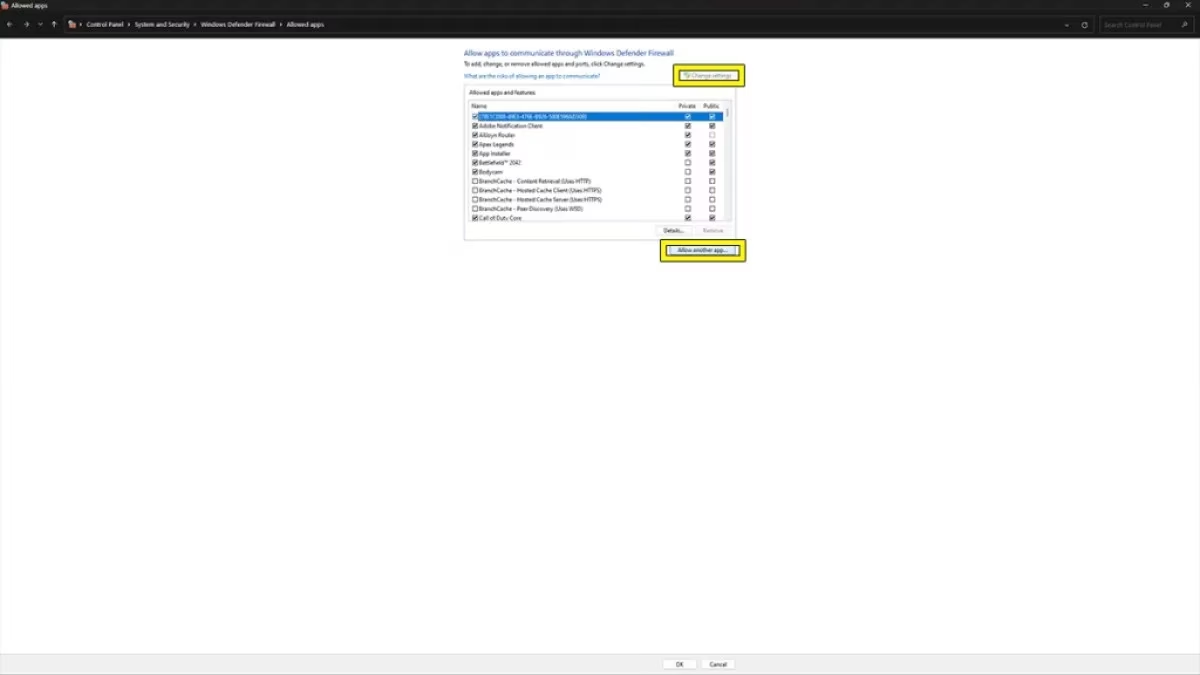
Click Change settings, then Allow another app.
-
Hit Browse, navigate to the game’s installation folder, and pick the main executable (usually
ZenlessZoneZero.exe). -
Check both the Private and Public boxes, and confirm.
After adding the exception, pause and resume the download. If you’re still getting stopped, temporarily disable Virus & threat protection – specifically the real-time scanning – while the launcher downloads. Just remember to turn it back on immediately after. I’ve seen multiple community reports in 2026 echo this: once the launcher is whitelisted, the download sails through.
🤝 6. When All Else Fails: Support & Community Workarounds
If you’ve tried everything and the progress bar is still mocking you, it’s time to reach out. HoYoverse’s customer support has gotten faster over the years; shoot them an email at [email protected] with a description of your issue and any error codes you’ve seen. Include your platform and region—they can sometimes provide a direct download link or push a fix from their side.
Don’t sleep on the community, either. A stubborn subset of players this year found success with an unofficial method that spreads across Reddit and Discord: a user-uploaded set of pre-extracted game files. The idea is to download the game in parts from a trusted mirror, then replace your launcher’s temporary folder content with those files, which forces the launcher to verify existing data instead of pulling everything from the server. It’s not officially endorsed, but many desperate proxies have reported it works. Just be cautious about where you download from—stick to well-known community hubs and scan everything with antivirus before executing anything.
Since launch, Zenless Zone Zero has evolved with new zones, agents, and story chapters that keep it among the most-played free-to-play titles. Download issues shouldn’t keep you from experiencing all that. With these steps, you should be navigating the neon-lit streets of New Eridu in no time. And once you’re in, you’ll definitely want to check out the latest tier lists and reroll strategies to hit the ground running with the best agents.
Information is adapted from PC Gamer coverage of PC game patching and launcher behavior, where recurring “download failed” problems are often traced back to practical bottlenecks like insufficient temporary disk space during decompression, flaky Wi‑Fi packet loss on large files, or security software throttling unknown executables. Applying that lens to Zenless Zone Zero in 2026, the most reliable fixes mirror standard PC troubleshooting: ensure ample free SSD space beyond the headline install size, prefer wired Ethernet for long downloads, and whitelist the launcher/game executables in your firewall or antivirus so the updater can complete verification without interruptions.